Plain-English summary#
Takeouts is the queue for pickup orders — the customer orders at the counter (or online), waits or comes back, and collects. In the counter app the takeout queue is the POS order screen in takeout mode: the same session POS showing only takeout orders, with tabs Open → Preparing → Ready → Picked → Cancelled. A takeout order's "done" state is Picked (picked up), and Foodops moves an order to Picked automatically once the kitchen marks all of its items served. This is different from Dine-In (seated, ends at Served) and Deliveries (goes out, ends at Delivered).
When you'd use this#
- Tracking takeaway orders through prep → ready → picked up
- Calling out order numbers when food is ready for collection
- Reviewing takeout vs dine-in mix
- Creating a new takeout order during a counter rush
How to access#
- Sidebar: "Takeouts" — with an open session it takes you to the POS in takeout mode; with no session it takes you to the Counter page so you can open a register first.
Walkthrough#
Creating a takeout order#
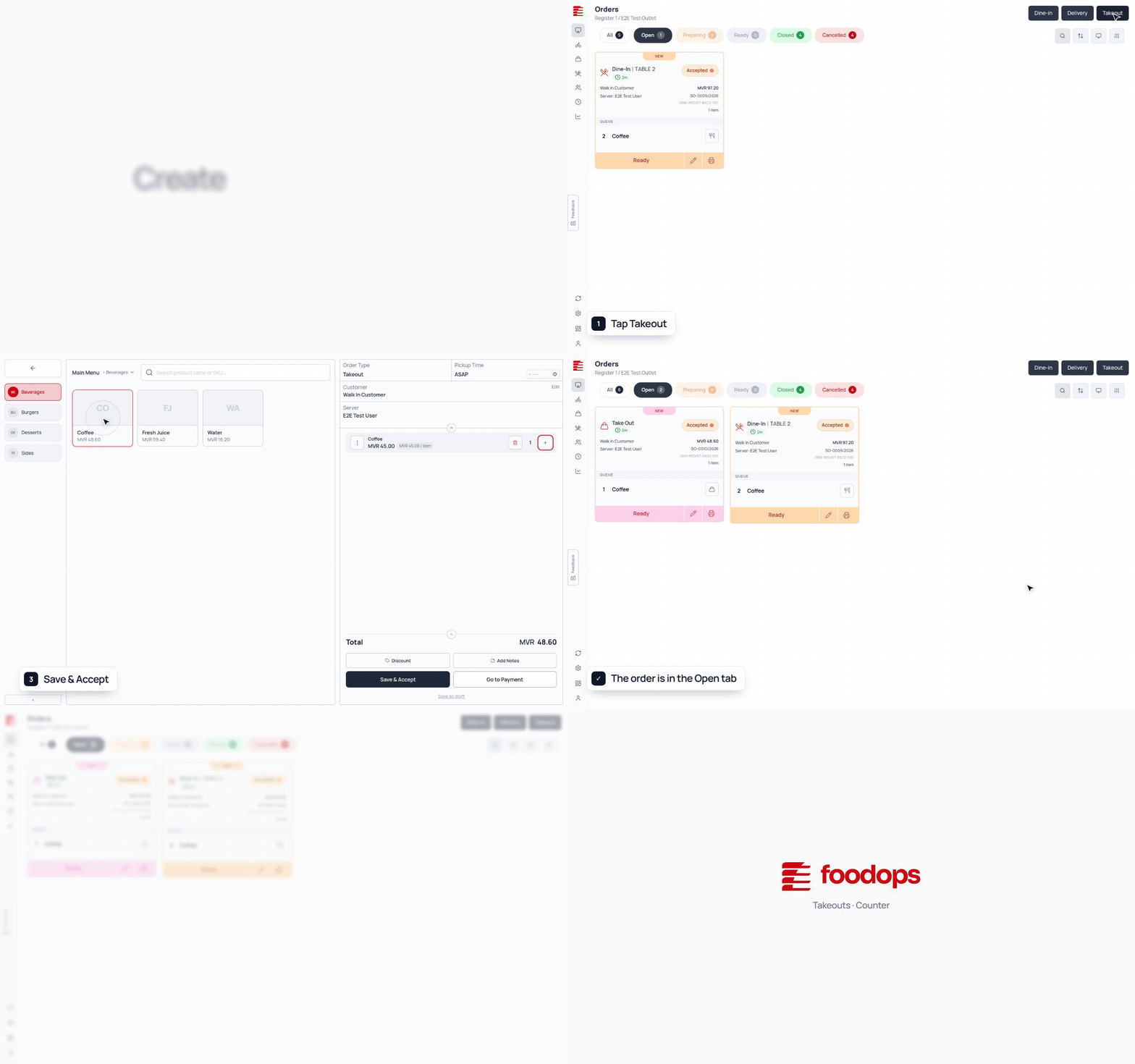
- In POS takeout mode, tap the Take Out button (shown when the outlet has takeout switched on and you have permission to create orders). On the plain counter view the same button is labelled Takeout, next to Dine-in and Delivery.
- The usual order screen opens with order type = takeout (no table needed — tables are only for dine-in).
- Add items and confirm — the order lands in the takeout queue's Open tab and KOTs go to the kitchen as usual.
Tracking the queue#
- The takeout queue shows tabs: Open / Preparing / Ready / Picked / Cancelled with live counts.
- The kitchen moves items along; when every item on a takeout order is served, the order moves to Picked automatically — the end state for takeout, like Served for dine-in.
- The Picked tab lists both "picked up, not yet settled" and "picked up and closed" orders; the badge counts both, so the count matches the list.
- Take payment as normal. Payment doesn't close the order by itself — a paid order stays open until you Close it from the order details panel.
Key concepts#
- Takeout mode — the takeout queue is the POS screen in takeout mode.
- Picked — the final status for a takeout order.
- Moves on when items are served — when all items are served, a takeout order moves to Picked and a dine-in order to Served; delivery orders don't change. Late kitchen updates can't move an order back out of its final state.
- Works offline — takeout orders created offline keep their place in the queue when the connection returns.
Common questions#
Q: How do I mark a takeout order as collected? A: Usually you don't have to — when the kitchen marks all items served the order moves to Picked automatically. You can also move it on from the order card.
Q: What's the difference between Ready and Picked? A: Ready = the kitchen has finished plating/bagging and it's waiting at the counter. Picked = the customer has collected it. Orders move to Picked automatically once their items are served; if you need a "waiting on the shelf" stage, leave orders in Ready until they're handed over.
Q: Why does the Picked tab show orders I already closed? A: On purpose — the Picked tab includes orders that were picked up and then settled, and the badge counts both so the count matches the list.
Q: Can I create a takeout order without an open register session? A: No — orders need a session. The sidebar takes you to the Counter page; opening a register takes you on into takeout mode.
Q: Do takeout orders need a customer name/phone? A: No. Adding a customer is optional, using the usual customer selector on the order panel.